ASUS
Updating BIOS
Section titled “Updating BIOS”To update the BIOS on an Asus motherboard, follow their official guide: https://www.asus.com/support/FAQ/1044348/
Removing Armoury Crate
Section titled “Removing Armoury Crate”If you’d prefer to remove Armoury Crate entirely instead of disabling the lighting service, please visit the following Official ASUS support page, select the OS in the dropdown, click “Show all” at the bottom, then download and run the latest listed Armoury Crate Uninstall Tool. Afterwards, please perform a full power cycle.
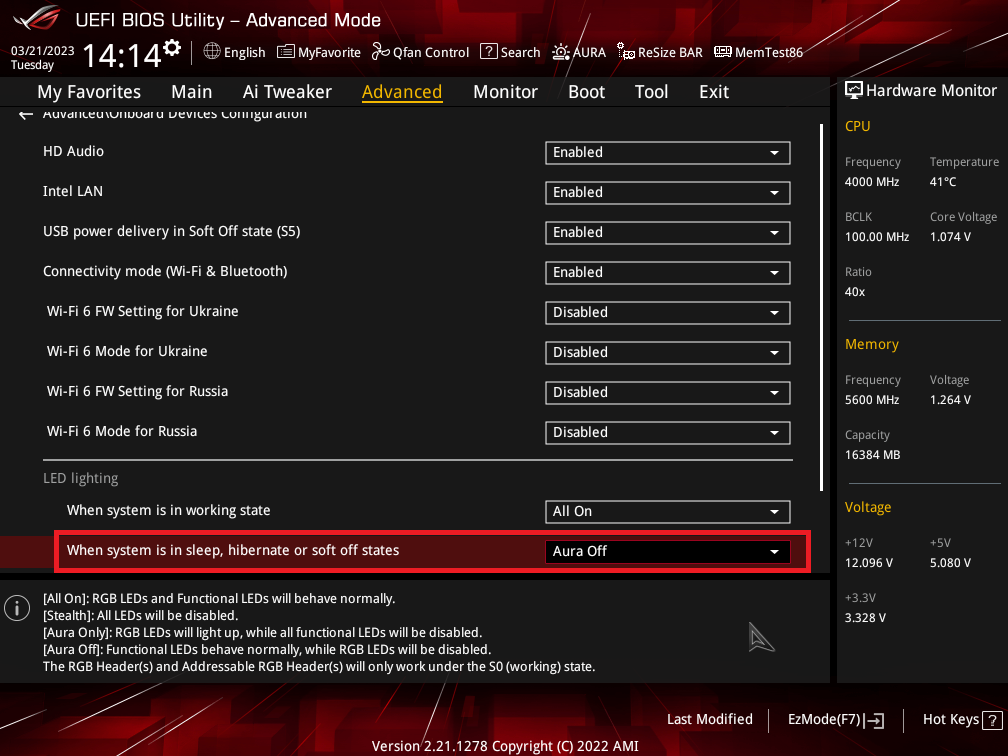
AURA Settings on BIOS
Section titled “AURA Settings on BIOS”Sometimes the AURA settings are set to off by mistake or during AC uninstall; make sure its set to “All On” when the system is in a working state, just like in the image below:
Disabling Asus Lighting Service
Section titled “Disabling Asus Lighting Service”LightingService or ASUS AURA Lighting service is an RGB process used by Armory Crate to control RGB lighting, and it launches silently in the background on computer startup. For SignalRGB to properly control ASUS products, this must be disabled.
Below are the steps to disable lightingservice.exe from running on startup.
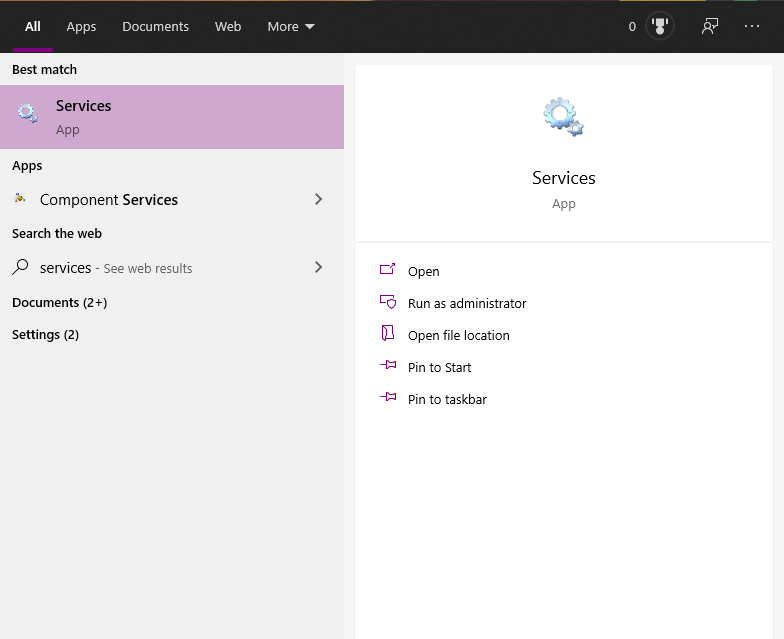
- First, open Windows Services. This can be done by opening the windows Start Menu and searching for
services
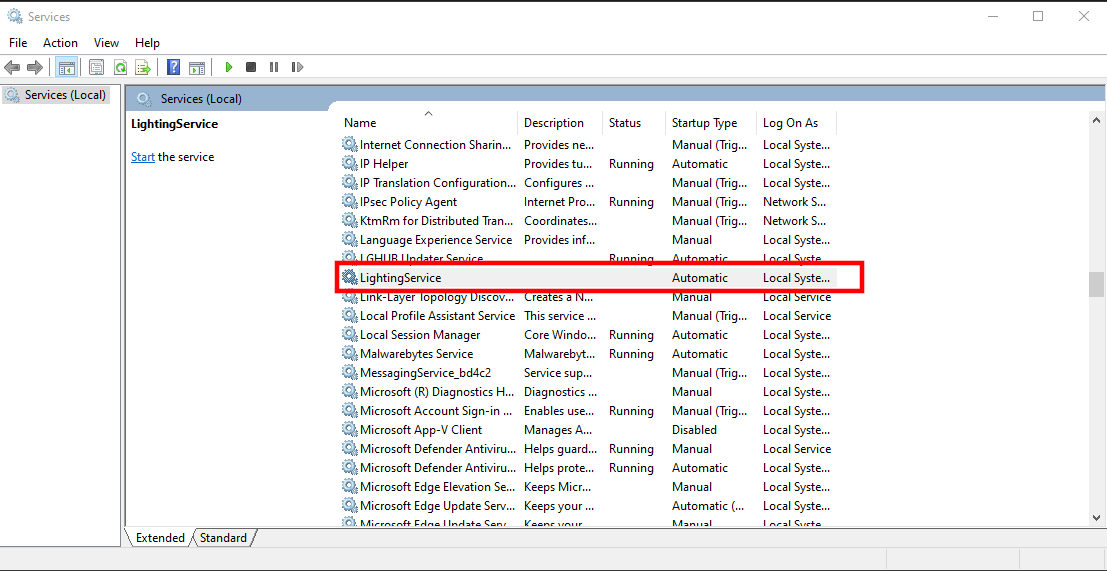
- You’ll need to find L
ightingServiceorASUS AURA Lighting servicein the list, then right-click on it and openproperties.
- Once there Change the Startup Type from
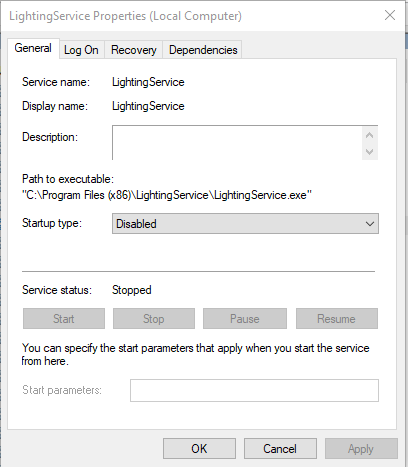
AutomatictoDisabled, and clickApply. You can also kill the process here if it is currently running by hitting theStopbutton.
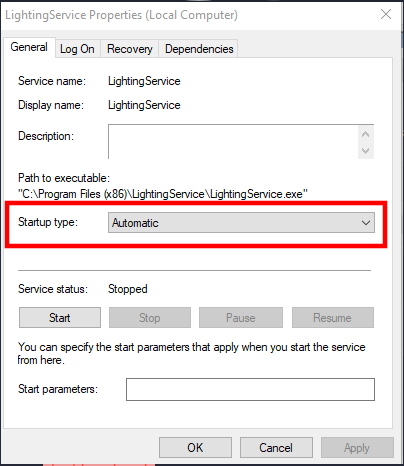
- Before you exit service, the page should look like this.