

Keyboard or Mouse Not Working
Problem: A supported keyboard or mouse is not working with SignalRGB
Section titled “Problem: A supported keyboard or mouse is not working with SignalRGB”Solution:
Section titled “Solution:”If your RGB keyboard or mouse is on the supported device list, but does not work properly in SignalRGB, try the following steps.
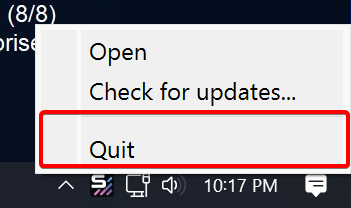
- Close SignalRGB. Right click on the icon in the system tray, and select Quit.
- Launch the original app that controls your keyboard/mouse. For example, if you are using a Corsair keyboard, launch iCUE.
- Delete any onboard profiles that might be saved to the device. This process will differ depending on the keyboard or mouse you’re using.
- If available: set the device to software control mode.
- If available: force a firmware update on the device.
- If possible, delete all lighting effects or set the device’s lighting to solid black / #000000.
- Quit the original app and make sure that it is fully closed by checking that it is not in Task Manager.
- Re-launch SignalRGB.
If your device still doesn’t react to the effects, please try using a different USB port.